To turn a work screenshot into a visual brief, confirm what it says before choosing how it should look. A table can become a set of cards while quietly losing a number or a pending status. Separate the information that must survive from the presentation that may change.
This guide uses public material checked on October 18, 2026. For its small demonstration, I generated an original fictional supply table with the GPT image tool, then supplied that image as a reference for a new visual. I did not test recognition of a real company screenshot or generation of an editable PowerPoint file.
What should the screenshot become?
The starting point was a public Instagram post by prompt_what, which describes turning a work screenshot into formats such as a comic, a summary graphic, or a task board. I did not request or reproduce its private codes or guide. This article develops a narrower, independent exercise: a preparation board that helps a reader distinguish confirmed supplies from an unresolved item.
Format follows the reader's decision. A preparation manager may need to find the item that still needs checking. A participant may need to know what to bring. Choosing “comic” or “cards” before stating that purpose can hide the difference. Write one sentence naming the reader and the decision the visual should support, then choose the format.
The fictional source has three rows: 12 lamps are confirmed, 8 cables are pending, and 20 labels are confirmed. The board should make those counts and statuses easy to find. It should not add a total, a completion percentage, an owner, or a delivery date. The source does not explain whether “pending” means awaiting purchase, delivery, or inspection. A more polished presentation is not permission to invent that explanation.
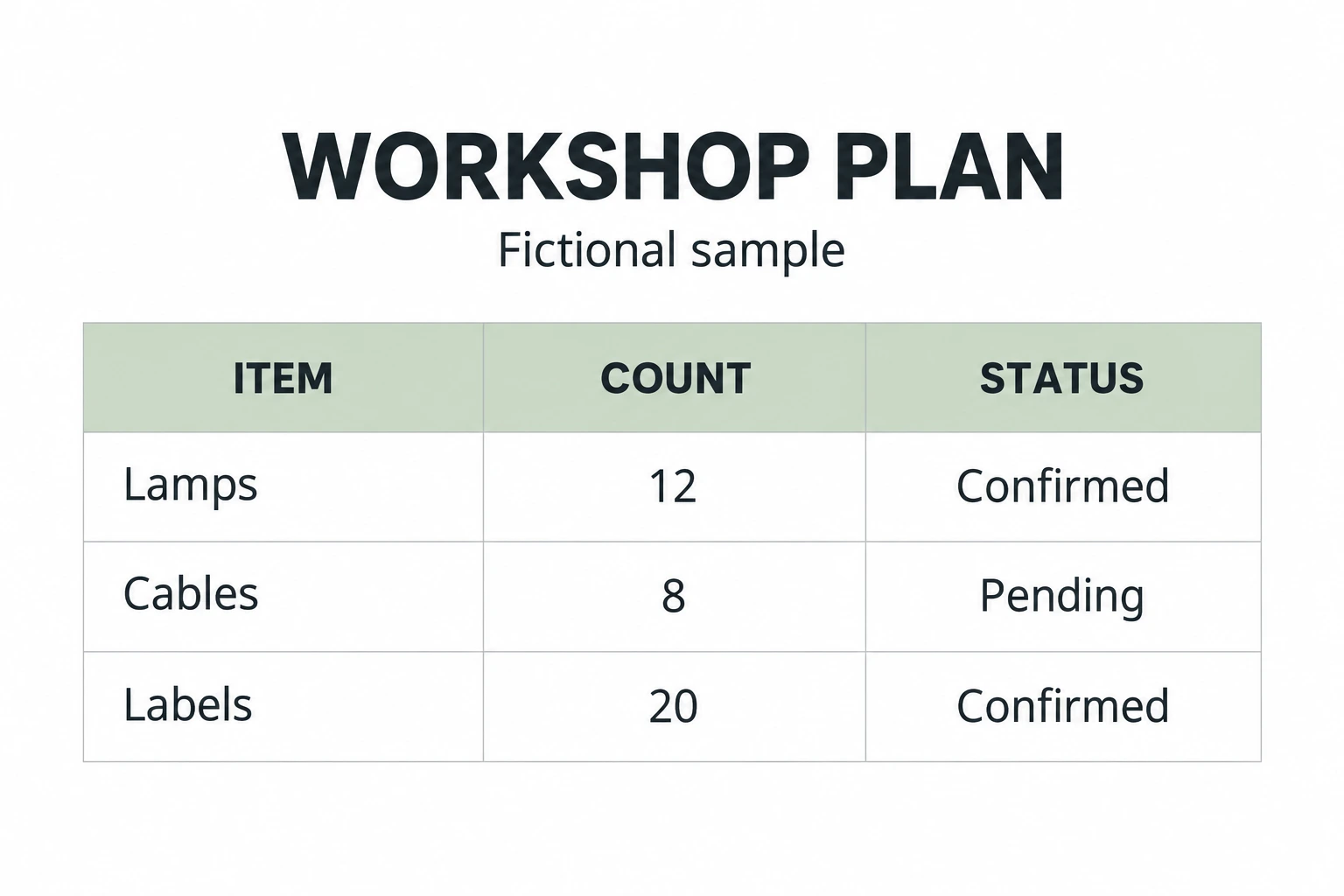 Original synthetic table showing Lamps 12 Confirmed, Cables 8 Pending, and Labels 20 ConfirmedView original
The input above is a newly generated fictional table, not a screenshot of a real business system. Its short English labels were chosen for a compact comparison. They provide no evidence that a dense Korean document would be read equally well. Keeping the input beside the result makes the limited claim inspectable.
What needs checking before drawing?
For an actual screenshot, ask for a text transcription before requesting a graphic. Keep the item, value, unit, and status in separate columns. Leave unreadable material marked for review instead of asking the model to complete it. Compare that transcription with the original screen before using it as the visual's content brief.
The OpenAI image-input FAQ describes limitations involving small text, non-Latin alphabets, visual distinctions in graphs, and precise spatial interpretation. Being able to accept an image does not guarantee an exact transcription. Enlarging text may help, but cropping out a unit or row heading can remove the context needed to interpret a number.
Here is an original request for that review stage. It is an unexecuted template, not a transcript of a ChatGPT test. In the demonstration below, I visually checked the synthetic source myself and repeated its three rows in the image-generation request.
Do not turn the attached screen into a graphic yet.
Transcribe only what is visibly supported.
Columns: source row / item / value and unit / status / unclear text.
Do not fill blanks or change pending items to confirmed.
Do not invent totals, owners, or deadlines.
Show the transcription first and wait for my confirmation.
If a colleague supplies additional information later, distinguish it from text read from the screenshot. A delivery date confirmed in a separate message has a different source. Combining it into the same brief without noting that distinction makes later corrections harder. This demonstration adds no such information.
Change the layout, not the meaning
After the content is checked, name what is fixed and what is flexible. Here the item names, counts, and statuses are fixed. The table rows may become three cards. Confirmed items use pale sage; the pending item uses pale amber. The status words remain visible, so color is not the only way to tell them apart.
Scroll horizontally to view a wide table.
| Check | Must stay | May change |
|---|---|---|
| Items | Lamps, cables, and labels | Supporting icons |
| Counts | 12, 8, and 20 respectively | Type size and placement |
| Status | Confirmed versus pending | Backgrounds and borders |
| Unknown facts | No owner or date supplied | Do not fill the gap with invented content |
An icon is a label, not a stock photograph. One cable drawing represents the cable category; it does not show that only one cable exists. The quantity remains an explicit number. This distinction matters when a visual is attractive enough to be mistaken for documentation of the physical supplies.
The OpenAI image guide documents uploading an existing image and describing a change. That establishes a supported interaction, not the fidelity of any particular result. After generation, read the small status words as carefully as the headline.
What did this demonstration actually verify?
I supplied the fictional table as a real reference input to the GPT image tool. The written request also included all three rows after I had checked them visually. It asked for three cards, preserved values and statuses, and prohibited new totals, dates, or percentages. This is therefore a transformation with both a reference image and checked text, not a test of unaided recognition from a screenshot.
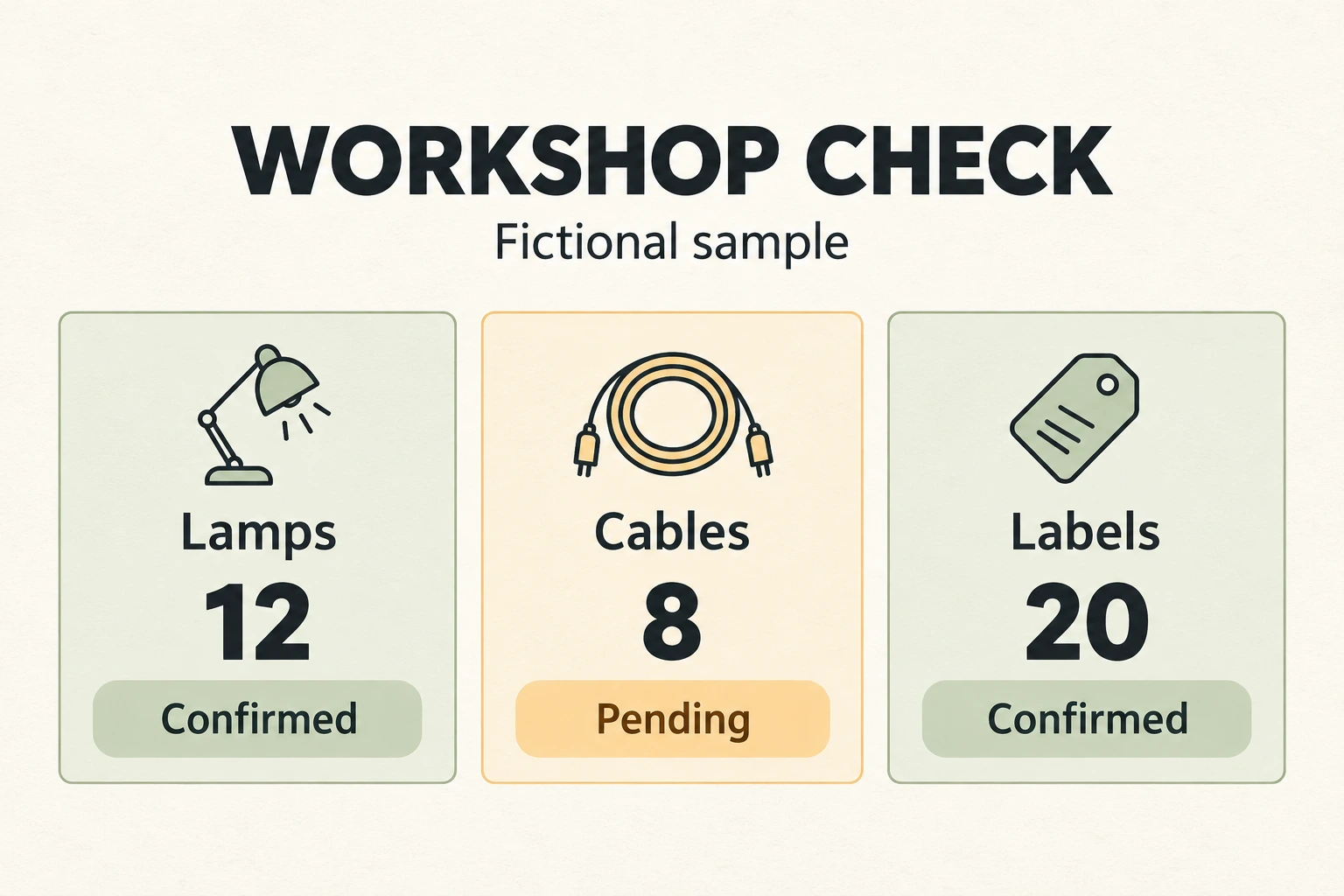 Actual generated board with Lamps 12 Confirmed, Cables 8 Pending, and Labels 20 Confirmed on separate cardsView original
The output retains Lamps 12 Confirmed, Cables 8 Pending, and Labels 20 Confirmed. All three categories are present, and cables remain pending. “Fictional sample” is visible under the title. Those are observations about this one result. They do not establish reliability across other tables, long passages, languages, or resolutions.
The output is a single image. Clear text does not make its letters, icons, and cards individually editable presentation objects. If the task requires an editable document, request the file format separately and open the file in the intended application. Check whether the actual text and shapes can be changed. No editable presentation was produced in this exercise.
The following is the exact English request used for the transformation. The attached reference was the synthetic table above. It was not an original creator's image or a customer's work screen.
Use the attached original synthetic table as a reference and redesign it as a clean, legible WORKSHOP CHECK task board, landscape 3:2. Preserve the three items, counts and statuses exactly. I have checked the source text: Lamps | 12 | Confirmed; Cables | 8 | Pending; Labels | 20 | Confirmed. This is a fictional example, not a live business report. Title exactly "WORKSHOP CHECK". Subtitle exactly "Fictional sample". Three separate large cards side by side: left "Lamps", "12", "Confirmed" with a simple lamp line icon; middle "Cables", "8", "Pending" with a simple coiled cable line icon; right "Labels", "20", "Confirmed" with a simple label-tag line icon. Soft sage for confirmed, pale warm amber for pending. Keep the English status WORDS visible, not just color. Warm ivory background, charcoal high-contrast typography, generous spacing and 100px outer safe margins. Editorial information graphic, understated paper texture, no logos, no people, no checkmark implying Cables is complete. Do not add dates, owners, totals, percentages, trend charts or any extra facts. Do not show a table or screenshot frame in the result.
How should the brief change for real work?
Change the reader and decision first. A preparation manager's visual may emphasize unresolved supplies. A participant notice should contain only confirmed actions the participant needs to take. Avoid sending an identical graphic to everyone with a new title. If the source lacks an instruction, ask for the missing information rather than letting the model invent one.
When the source contains more items, choose a grouping rule. Grouping by location, date, or status supports different ways of finding information. After rearranging, check that every relevant source row appears exactly once. A neat layout can still omit one item or repeat another. Visual balance is not a completeness check.
For money, preserve the currency and whether tax is included. For dates, decide whether the year and time zone are necessary. For percentages, keep the denominator or basis. These fields were not in the fictional input and were not tested here. They are examples of how the review criteria should expand with the real material.
A screenshot is not the whole document. Rows outside the viewport, collapsed columns, or filtered entries may be absent. Do not call a capture the complete situation just because the document title sounds comprehensive. Check its scope first. When combining several captures, look for overlapping rows. If the final row is cut off, consult the source rather than asking the model to reconstruct the missing text.
For revisions, change content and design separately when possible. If the cables become confirmed, update the checked source and request that status change while holding the other values fixed. After generation, reread the lamps and labels as well. An instruction not to change them is not evidence that they remained untouched.
Keep input, result, and revision filenames distinct. Before sharing, confirm that the attachment is the version you reviewed. Inspecting the new status does not help if an older image is attached instead. Three rows can be compared directly; a longer source benefits from a separate reconciliation list.
The earlier DMS guide to placing images with a sketch separates spatial layout from material descriptions. This exercise separates informational meaning from its presentation. The guide to checking meeting-note evidence makes a related distinction between a source and a summary. Keep the source table and the visual as separate files so a later revision can be compared with both.
What should be checked before sharing?
Review the content and the visual in two passes. First compare names, values, units, and statuses with the original source. Then inspect the final graphic for clipped words, missing or repeated items, and misleading color. Check it at the size readers will actually see. A status that is clear on a desktop may become too small on a phone.
A company screenshot may also expose customer names, email addresses, contract values, or internal locations. Check the organization's approved services and data-processing rules before uploading it. Remove information the exercise does not need. A crop does not by itself establish that all sensitive content has been removed. When permission is uncertain, practice with fictional data instead.
The useful outcome is a visual whose preserved information can be explained, not merely a decorated screenshot. For training context, see the DMS.Labs generative AI education page, which is available in Korean. Bring a short permitted source and a list of facts that must not change.