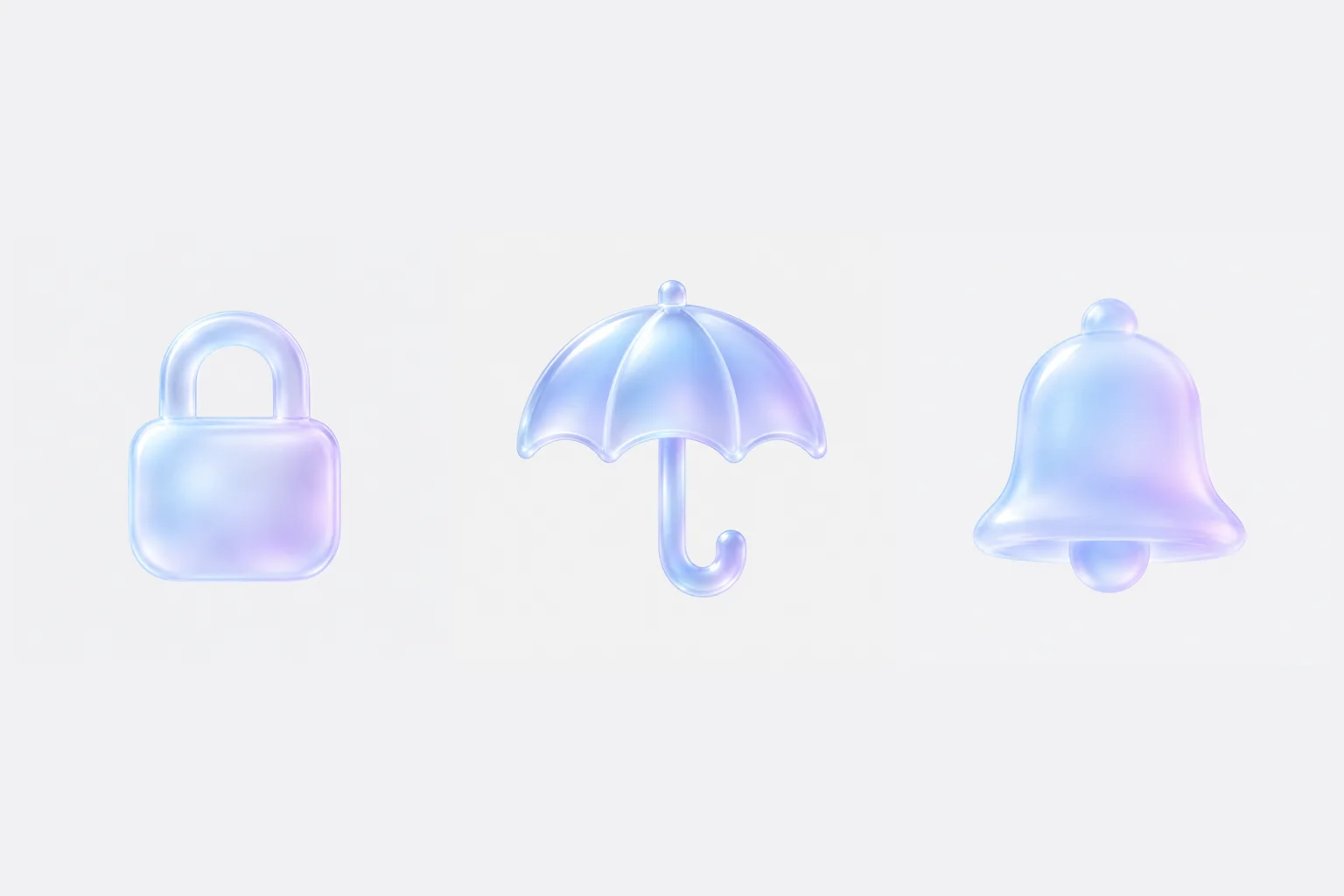
When you request icons one object at a time, the shapes may be right while the texture and color drift a little from icon to icon. My reading is that the style description gets rewritten with every request, and the model reads it fresh each time. So I tested a structure where the style stays one fixed block and only a single object name changes. This guide calls the fixed block the "style slot" and the changing part the "name slot."
It draws on the wording of a public Instagram post, OpenAI's image generation guide and two MDN pages, all checked on October 24, 2026. The prompt below is exactly the sentence I used. I generated three icons with it, a padlock, an umbrella and a notification bell, once each, and I did not pick among results or regenerate. I did not generate a comparison set without a style slot, so this test cannot show that the method beats writing the style fresh each time.
Why do separately requested icons stop looking like one set?
Because a style description written separately for each icon gets read slightly differently each time.
The starting point was a public Instagram post by mongteam.ai. According to its caption, you attach an icon image and use one prompt to get glassmorphism-style icons saved as transparent PNG and SVG. A single word such as "padlock" is said to produce the same style, the SVG can be edited shape by shape in Figma, and the colors can be changed. The caption says a set of 90 glassmorphism icons, the prompt and a color-change guide will be sent by direct message to people who comment.
I did not comment, and I never saw the 90-icon pack or the original prompt. I also could not confirm which tool produces the transparent PNG and SVG. This guide therefore takes one direction from the caption, which is to keep the style fixed and change only the object name, and designs everything else itself.
OpenAI's image generation guide lists consistency among its limitations. It says GPT Image models may occasionally struggle to keep recurring characters or brand elements visually consistent across multiple generations. An icon set faces a version of the same problem. My interpretation is that a person has to build the structure so that identical conditions go into every request.
How do you split the style slot from the name slot?
Put everything that must not change into the style slot, and put one object into the name slot.
The style slot holds the material, the color range, the light, the corners, the background and the prohibitions. In the test it was filled like this:
- Material: rounded frosted glass
- Color range: pale blue to soft lilac
- Light: a thin bright white highlight along the upper-left edge and a gentle inner glow
- Corners and outline: smooth rounded corners, no outline
- Background: plain flat very light grey, centered, generous margin
- Prohibitions: no text, no drop shadow on the background, no other objects
The name slot is one line. In the test it read "Subject: a padlock." I used one object because I expected extra words to turn an icon into a scene. That is my own judgment, and I did not check it separately.
Here is the exact text used, so you can copy it. It is in English, and I did not test a Korean rewrite.
A single app-icon style object, made of rounded frosted glass: translucent pale blue to soft lilac tint, soft blurred depth, a thin bright white highlight along the upper-left edge, gentle inner glow, smooth rounded corners, no outline. Centered with generous margin on a plain flat very light grey background. No text, no letters, no drop shadow on the background, no other objects. Subject: a padlock.
For the second and third requests I changed only the last sentence, to "Subject: an umbrella." and "Subject: a notification bell." Not one other character changed.
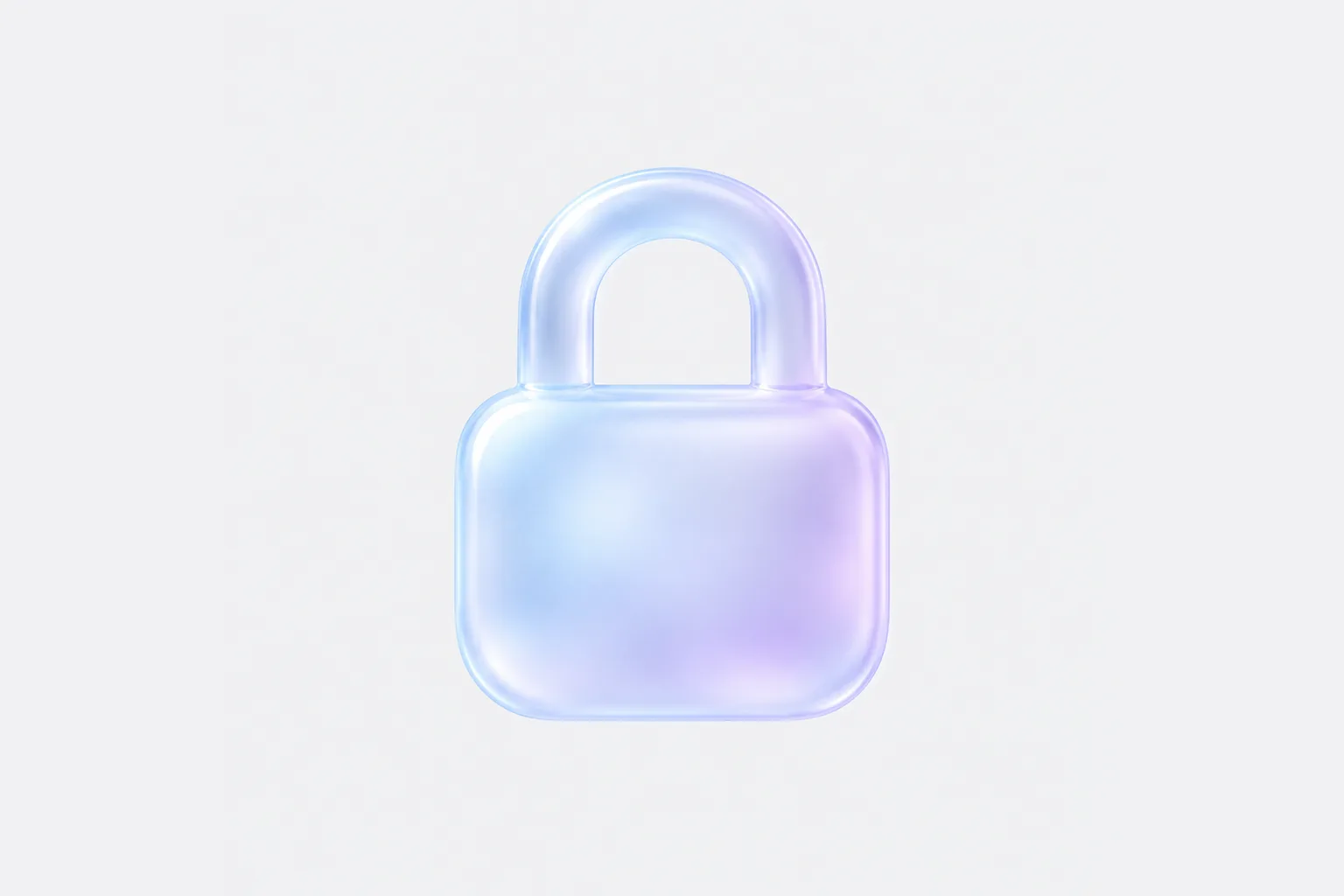 A frosted-glass padlock icon made with the shared style slot, in a pale blue to lilac tint on a light grey backgroundView original
What stayed the same and what changed across the three icons?
The texture and color family stayed the same. The size and margin did not.
All three had rounded edges, no outline and a translucent look. The tint moved from pale blue to lilac, and no text or extra objects appeared. I measured the average color over the area each object occupies, not over the whole canvas. It came to (208, 215, 250) for the padlock, (192, 207, 249) for the umbrella and (203, 212, 252) for the bell. The blue values sat between 249 and 252. Only the umbrella had a lower red value, which made it slightly bluer.
Size was what differed. On a 1254 by 1254 canvas, the object's width was about 48% for the padlock, about 62% for the bell and about 71% for the umbrella. The heights were about 62%, 67% and 72%. The style slot said "generous margin" but never said how much of the canvas the object should fill, and I think that explains it. A set of icons has to fit one grid, so this difference becomes extra work later.
The background was not identical either. The average of the four corners was (240, 241, 243) for the padlock, (242, 242, 242) for the umbrella and (242, 242, 244) for the bell. You can barely see the difference, but it could matter if you plan to remove the background in one pass. Highlight sharpness I judged by eye and did not measure. The edge light on the umbrella canopy looked clearer than the top edge of the padlock body.
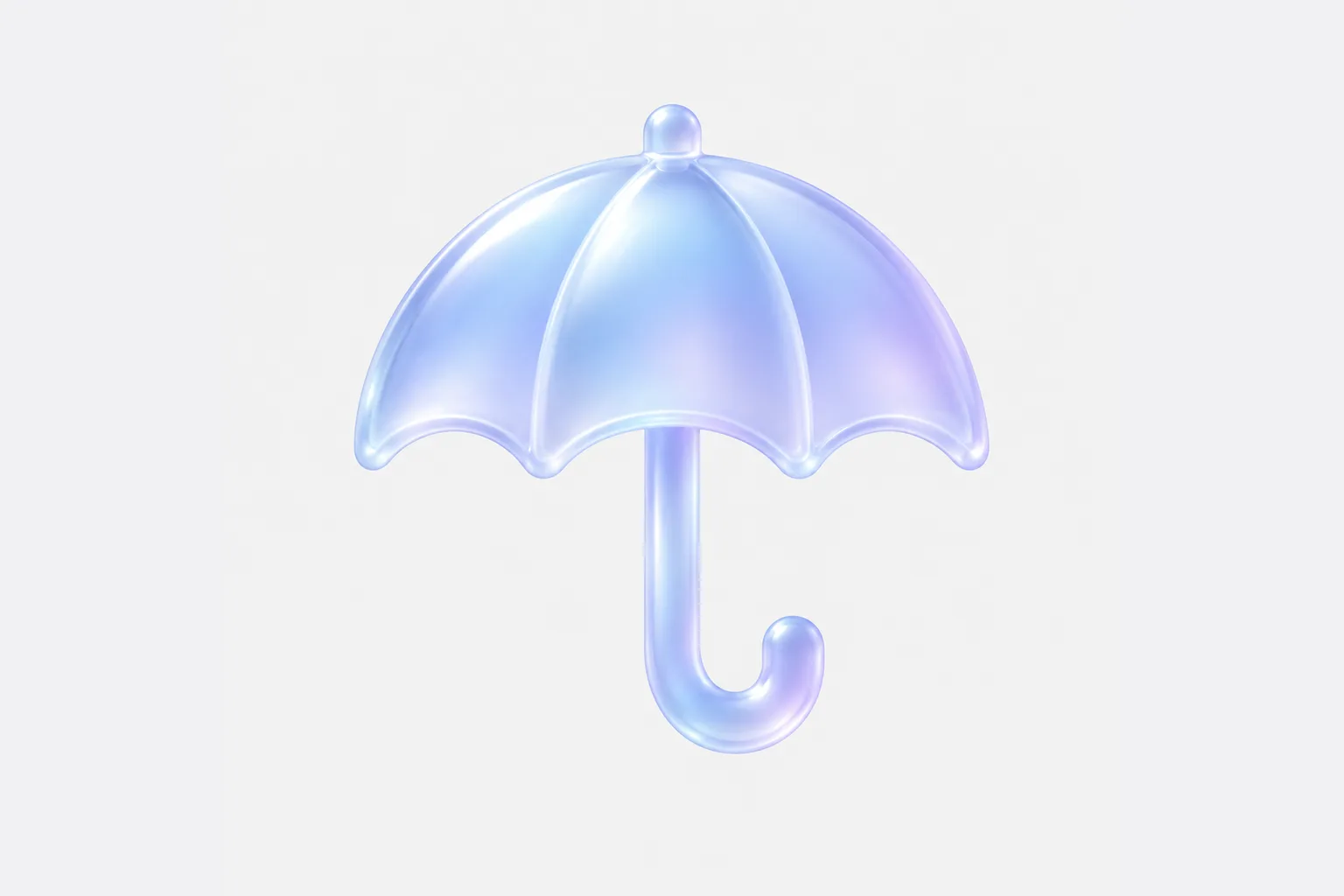 A frosted-glass umbrella icon made with the same style slot, filling more of the canvas than the padlockView original
I included "padlock" because it is the most common icon, and it also happens to be the example word in the original caption. I did not compare my result with theirs.
How do you get a transparent PNG or an SVG?
This test produced neither. It produced PNG files with an opaque grey background.
I opened all three files. They were 1254 by 1254 PNGs with no alpha channel, which means no transparency information. The test sent only the prompt to the image tool and no extra options such as size or background.
OpenAI's guide says that for a transparent background you set the background option to transparent and use png or webp as the output format. The output formats it describes are png, jpeg and webp, and it does not mention svg. This can differ by tool and version, so check what your tool supports before you plan around it.
As MDN describes it, SVG is an XML-based vector graphics format. It renders at any size without losing quality and can be edited in a text editor. A generated image, by contrast, is a raster picture made of pixels. Turning it into SVG takes a separate conversion step, and I did not test that step. I also do not know how the original post produced its SVG files. I suspect that a picture with this much blur and gradient changes appearance when converted to simple shapes, but I did not verify that either.
On a web page, you can also get a glass look with the CSS property backdrop-filter. MDN explains that it applies effects such as blur to the area behind an element, and that the element or its background has to be transparent or partly transparent for the effect to show. An icon with the glass texture baked into its pixels may look wrong when the page background changes. I did not test how these icons look on a dark background.
Which variables can you change?
Change one at a time. If you change color, light and background together, you cannot tell which change did what.
Scroll horizontally to view a wide table.
| Variable | How to change it | What to check |
|---|---|---|
| Name slot | One object as a noun. Start with simple silhouettes such as a padlock, an umbrella or a bell | That no adjectives or scene descriptions crept in |
| Color range | Replace the two colors with two others | That the whole set uses the same two colors |
| Light | Fix the highlight to one direction | That the direction does not vary within the set |
| Background | A flat single color if you plan to cut the icons out later | That the corner color matches on every image |
| Size slot (proposal) | Give a ratio, such as "the object fills about 60 percent of the canvas width" | I did not use this in the test, so its effect is unconfirmed |
The size slot is a proposal I added after seeing the results. I did not run it, so I do not know whether it produces equal widths.
What do you fix when the icons do not match?
Pick one mismatched item and edit only the sentence in the style slot that covers it.
Scroll horizontally to view a wide table.
| Symptom | Possible cause | Where to fix |
|---|---|---|
| Objects differ in size | The style slot says nothing about size | Add a size slot and compare the three again |
| One icon has a different texture | An adjective or material word slipped into the name slot | Return the name slot to a single object name |
| A shadow or floor appears | The prohibition is buried at the end | Move the no-shadow sentence earlier |
| Letters or symbols appear | An object that suggests text, such as a badge with a count | Keep the no-text sentence and retest with a different object |
| The highlight direction varies | The light direction is buried inside a long sentence | Give the direction its own sentence |
| A set you liked will not come back | Results vary slightly even with the same prompt | Keep the style slot text in a file and save the images you like |
If only one icon in a set is wrong, I would leave the style slot alone and regenerate just that object. You still have to check by eye each time that the new image matches the rest.
In what order can you try this?
- Write the style slot once and save it in a notes file. After that you only copy and paste it.
- Put the simplest object in the name slot and make one image. Note which sentences in the style slot you would change.
- Use the same style slot to make a second and third object.
- Line up the three and compare four things: size, color, highlight direction and background color.
- Fix only the mismatched items in the style slot and regenerate the first three objects. After you edit the style slot, the earlier images need to be regenerated against the new standard to count as one set.
- If you need a transparent background or SVG, treat it as a separate step. Check which output formats your tool supports first.
The idea of giving a reference image and the written instructions different jobs is covered in our sketch-position guide. The style slot and name slot belong to the same family, because each input has a defined role.
Frequently asked questions
Does swapping only the object name always keep the style the same?
There is no basis for saying always. In this test all three images came out with the same texture and color family, but that is only three images and their sizes differed. OpenAI's guide also says consistency across multiple generations may not hold.
Can this prompt produce an SVG icon directly?
It could not. The output of this test was a raster PNG without an alpha channel. If you need SVG, you need a separate conversion tool or a vector editor, and this guide did not test that step.
Do I need the 90-icon pack from the original post to follow this?
This method contains only sentences I wrote, so it works without that pack. I could not confirm how the 90-icon pack is organized, and I do not judge whether receiving it is worthwhile.
Sources and scope
- Original public post: mongteam.ai's Instagram post. Only the direction visible in the public caption was used. The 90-icon pack and original prompt offered through comments were not used. Checked on October 24, 2026.
- OpenAI image generation guide: the consistency limitation, transparent backgrounds and output formats. Checked on October 24, 2026.
- MDN pages on backdrop-filter and SVG. Checked on October 24, 2026.
- The prompt above is the sentence actually used. The three images in this article come from running it once each through Aside's image generation tool, then arranged on a 3:2 canvas. The color and size figures were measured directly from the original PNG files. A control test without a style slot, the size slot, a transparent background, SVG conversion and display on a dark background were not run.
What to read next
If you want to move prompts from one-off tricks to a team's repeated way of working, DMS.Labs' generative AI curriculum, currently provided in Korean, covers writing requests and reviewing results together. In an icon set, what matters is less how well the model draws than a person deciding in advance which sentences must stay identical every time.